
Mar
02
2009

How to Add Nested Comments to Your WordPress Theme

by   |  Posted in Tutorials  |  120 comments

When WordPress 2.7 came out, there were a lot of new features, most of which probably passed by under your radar. I know I missed a bunch and thankfully, I am starting to notice how much more powerful WordPress has become. I had someone request making my Magazine Basic theme function with nested comments and that started me on researching just how this new WP feature worked. It ended up being a harder nut to crack than I first thought, but crack it I did (though I probably spend way too much time on it).

There are quite a few steps to making your theme work with nested comments but the easiest thing to do to start off is open up your theme’s comments.php file and replace it with this:

1
2
3
4
5
6
7
8
9
10
11
12
13
14
15
16
17
18
19
20
21
22
23
24
25
26
27
28
29
30
31
32
33
34
35
36
37
38
39
40
41
42
43
44
45
46
47
48
49
50
51
52
53
54
55
56
57
58
59
60
61
62
63
64
65
66
67
68
69
70
71
72
73
74
75
76
77
78
79
80
81
82
83
84
85
86
87
88
89
90
91
<?php
 
// Do not delete these lines
if (!empty($_SERVER['SCRIPT_FILENAME']) && 'comments.php' == basename($_SERVER['SCRIPT_FILENAME']))
die ('Please do not load this page directly. Thanks!');
 
if ( post_password_required() ) { ?>
<p class="nocomments">This post is password protected. Enter the password to view comments.</p>
<?php
return;
}
?>
 
<!-- You can start editing here. -->
 
<?php if ( have_comments() ) : ?>
<h3 id="comments"><?php comments_number('No Responses', 'One Response', '% Responses' );?> to &#8220;<?php the_title(); ?>&#8221;</h3>
 
<div class="navigation">
<div class="alignleft"><?php previous_comments_link() ?></div>
<div class="alignright"><?php next_comments_link() ?></div>
</div>
 
<ol class="commentlist">
<?php wp_list_comments(); ?>
</ol>
 
<div class="navigation">
<div class="alignleft"><?php previous_comments_link() ?></div>
<div class="alignright"><?php next_comments_link() ?></div>
</div>
<?php else : // this is displayed if there are no comments so far ?>
 
<?php if ('open' == $post->comment_status) : ?>
<!-- If comments are open, but there are no comments. -->
 
<?php else : // comments are closed ?>
<!-- If comments are closed. -->
<p class="nocomments">Comments are closed.</p>
 
<?php endif; ?>
<?php endif; ?>
 
<?php if ('open' == $post->comment_status) : ?>
 
<div id="respond">
 
<h3><?php comment_form_title( 'Leave a Reply', 'Leave a Reply to %s' ); ?></h3>
 
<div class="cancel-comment-reply">
<small><?php cancel_comment_reply_link(); ?></small>
</div>
 
<?php if ( get_option('comment_registration') && !$user_ID ) : ?>
<p>You must be <a href="<?php echo get_option('siteurl'); ?>/wp-login.php?redirect_to=<?php echo urlencode(get_permalink()); ?>">logged in</a> to post a comment.</p>
<?php else : ?>
 
<form action="<?php echo get_option('siteurl'); ?>/wp-comments-post.php" method="post" id="commentform">
 
<?php if ( $user_ID ) : ?>
 
<p>Logged in as <a href="<?php echo get_option('siteurl'); ?>/wp-admin/profile.php"><?php echo $user_identity; ?></a>. <a href="<?php echo wp_logout_url(get_permalink()); ?>" title="Log out of this account">Log out &raquo;</a></p>
 
<?php else : ?>
 
<p><input type="text" name="author" id="author" value="<?php echo $comment_author; ?>" size="22" tabindex="1" <?php if ($req) echo "aria-required='true'"; ?> />
<label for="author"><small>Name <?php if ($req) echo "(required)"; ?></small></label></p>
 
<p><input type="text" name="email" id="email" value="<?php echo $comment_author_email; ?>" size="22" tabindex="2" <?php if ($req) echo "aria-required='true'"; ?> />
<label for="email"><small>Mail (will not be published) <?php if ($req) echo "(required)"; ?></small></label></p>
 
<p><input type="text" name="url" id="url" value="<?php echo $comment_author_url; ?>" size="22" tabindex="3" />
<label for="url"><small>Website</small></label></p>
 
<?php endif; ?>
 
<!--<p><small><strong>XHTML:</strong> You can use these tags: <code><?php echo allowed_tags(); ?></code></small></p>-->
 
<p><textarea name="comment" id="comment" cols="100%" rows="10" tabindex="4"></textarea></p>
 
<p><input name="submit" type="submit" id="submit" tabindex="5" value="Submit Comment" />
<?php comment_id_fields(); ?>
</p>
<?php do_action('comment_form', $post->ID); ?>
 
</form>
 
<?php endif; // If registration required and not logged in ?>
</div>
 
<?php endif; // if you delete this the sky will fall on your head ?>

Now, you need to make sure that nested comments are activated on your WordPress install by going to your admin panel => Settings => Discussion and checking “Enable threaded (nested) comments” Set the level to whatever you want. I like using 2 levels.

If you return to a post page on your site, you should now see reply buttons after each post. And if you click reply, you will noticed that not much happens other than “Click here to cancel reply.” appearing above your reply window. It is a little too subtle for me, so luckily there is a great Javascript hook already installed that you can call by just adding this:

1
<?php if ( is_singular() ) wp_enqueue_script( 'comment-reply' ); ?>

to you header.php file above <?php wp_head(); ?>.

Now when you click reply, the reply box appears directly below the comment you want to reply to. This is a great little feature and it makes your comments section more intuitive for your user.

The only thing left, really, is styling your comments. With WordPress 2.7, one hook creates the whole comment loop, as opposed to before when you had to call the avatar, the comment text, the date and all that jazz. There is a lot happening with <?php wp_list_comments(); ?> and though some might find it awesome that you don’t have to worry about adding tons of code, others might not like the fact that you can’t edit what appears in your comments and where. There is a solution to this that I will show you below, but for now lets talk about CSS.

WP 2.7 nested comments introduce some new classes and ids for you to style as you wish. It is a pretty long list though.

1
2
3
4
5
6
7
8
9
10
11
12
13
14
15
16
17
18
19
20
21
22
23
24
25
26
27
28
29
30
31
32
33
34
35
36
37
38
39
40
41
42
43
44
45
46
47
48
49
50
51
52
53
54
55
56
57
58
59
60
61
62
63
ol.commentlist {}
ol.commentlist li {}
ol.commentlist li.alt {}
ol.commentlist li.bypostauthor {}
ol.commentlist li.byuser {}
ol.commentlist li.comment-author-admin {}
ol.commentlist li.comment {}
ol.commentlist li.comment div.comment-author {}
ol.commentlist li.comment div.vcard {}
ol.commentlist li.comment div.vcard cite.fn {}
ol.commentlist li.comment div.vcard cite.fn a.url {}
ol.commentlist li.comment div.vcard img.avatar {}
ol.commentlist li.comment div.vcard img.avatar-32 {}
ol.commentlist li.comment div.vcard img.photo {}
ol.commentlist li.comment div.vcard span.says {}
ol.commentlist li.comment div.commentmetadata {}
ol.commentlist li.comment div.comment-meta {}
ol.commentlist li.comment div.comment-meta a {}
ol.commentlist li.comment * {} - (p, em, strong, blockquote, ul, ol, etc.)
ol.commentlist li.comment div.reply {}
ol.commentlist li.comment div.reply a {}
ol.commentlist li.comment ul.children {}
ol.commentlist li.comment ul.children li {}
ol.commentlist li.comment ul.children li.alt {}
ol.commentlist li.comment ul.children li.bypostauthor {}
ol.commentlist li.comment ul.children li.byuser {}
ol.commentlist li.comment ul.children li.comment {}
ol.commentlist li.comment ul.children li.comment-author-admin {}
ol.commentlist li.comment ul.children li.depth-2 {}
ol.commentlist li.comment ul.children li.depth-3 {}
ol.commentlist li.comment ul.children li.depth-4 {}
ol.commentlist li.comment ul.children li.depth-5 {}
ol.commentlist li.comment ul.children li.odd {}
ol.commentlist li.even {}
ol.commentlist li.odd {}
ol.commentlist li.parent {}
ol.commentlist li.pingback {}
ol.commentlist li.pingback div.comment-author {}
ol.commentlist li.pingback div.vcard {}
ol.commentlist li.pingback div.vcard cite.fn {}
ol.commentlist li.pingback div.vcard cite.fn a.url {}
ol.commentlist li.pingback div.vcard span.says {}
ol.commentlist li.pingback div.commentmetadata {}
ol.commentlist li.pingback div.comment-meta {}
ol.commentlist li.pingback div.comment-meta a {}
ol.commentlist li.pingback * {} - (p, em, strong, blockquote, ul, ol, etc.)
ol.commentlist li.pingback div.reply {}
ol.commentlist li.pingback div.reply a {}
ol.commentlist li.pingback ul.children {}
ol.commentlist li.pingback ul.children li {}
ol.commentlist li.pingback ul.children li.alt {}
ol.commentlist li.pingback ul.children li.bypostauthor {}
ol.commentlist li.pingback ul.children li.byuser {}
ol.commentlist li.pingback ul.children li.comment {}
ol.commentlist li.pingback ul.children li.comment-author-admin {}
ol.commentlist li.pingback ul.children li.depth-2 {}
ol.commentlist li.pingback ul.children li.depth-3 {}
ol.commentlist li.pingback ul.children li.depth-4 {}
ol.commentlist li.pingback ul.children li.depth-5 {}
ol.commentlist li.pingback ul.children li.odd {}
ol.commentlist li.thread-alt {}
ol.commentlist li.thread-even {}
ol.commentlist li.thread-odd {}

The depth actually goes down to level 10 but I stopped at level 5 above. Hopefully you get the idea. There are a lot of elements to style but of course, you don’t have to style them all. For my Magazine Basic theme, I used only the following:

1
2
3
4
5
6
7
8
9
10
11
12
13
14
15
16
17
18
19
20
21
22
23
ol.commentlist { list-style:none; margin:0; padding:0; }
ol.commentlist li { border:1px solid #d5d5d5; border-radius:5px; -moz-border-radius:5px; -webkit-border-radius:5px; margin:0 0 10px; padding:5px 7px 5px 64px; position:relative; }
ol.commentlist li.pingback comment-author { padding:0 170px 0 0; }
ol.commentlist li div.vcard { font-weight:bold; font-size: 14px; line-height: 16px; font-family: helvetica,arial,sans-serif; }
ol.commentlist li div.vcard cite.fn { font-style:normal; font-size: 11px; }
ol.commentlist li div.vcard cite.fn a.url { color:#cc0000; text-decoration:none; }
ol.commentlist li div.vcard cite.fn a.url:hover { color:#000; }
ol.commentlist li div.vcard img.avatar { background: #fff; border:1px solid #aaa; padding: 5px; left:7px; position:absolute; top:7px; }
ol.commentlist li div.comment-meta { font-weight:bold; font-size: 10px; line-height: 16px; font-family: helvetica,arial,sans-serif; position:absolute; right:10px; text-align:right; top:5px; }
ol.commentlist li div.comment-meta a { color:#205B87; text-decoration:none; }
ol.commentlist li p { font-weight:normal; font-size: 12px; line-height: 16px; font-family: helvetica,arial,sans-serif; margin:5px 0 12px; }
ol.commentlist li ul { font-weight:normal; font-size: 12px; line-height: 16px; font-family: helvetica,arial,sans-serif; list-style:square; margin:0 0 12px; padding:0; }
ol.commentlist li div.reply { background:#999; border:1px solid #666; border-radius:2px; -moz-border-radius:2px; -webkit-border-radius:2px; color:#fff; font:bold 9px/1 helvetica,arial,sans-serif; padding:6px 5px 4px;  text-align:center; width:36px; }
ol.commentlist li div.reply:hover { background:#cc0000; border:1px solid #cc0000; }
ol.commentlist li div.reply a { color:#fff; text-decoration:none; text-transform:uppercase; }
ol.commentlist li ul.children { list-style:none; margin:12px 0 0; text-indent:0; }
ol.commentlist li ul.children li.depth-2 { margin:0 0 3px; }
ol.commentlist li ul.children li.depth-3 { margin:0 0 3px; }
ol.commentlist li ul.children li.depth-4 { margin:0 0 3px; }
ol.commentlist li ul.children li.depth-5 { margin:0 0 3px; }
ol.commentlist ul.children li.odd { background:#fff; }
ol.commentlist ul.children li.even { background:#f6f6f6; }
ol.commentlist li.pingback div.vcard { padding:0 170px 0 0; }

If you have your nested comment level set to 3 you should now have something that looks like this:
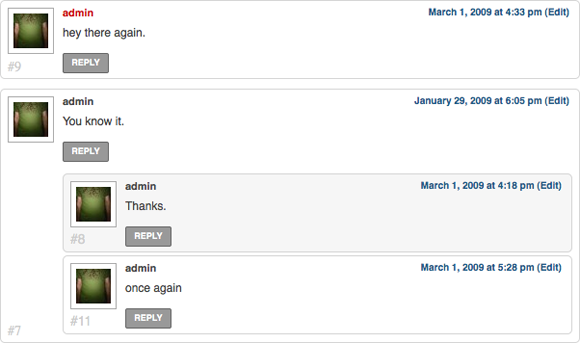
threaded

It all works great but there are a few things that I wanted to change. They don’t make it that easy to manipulate things but I figured it out and added a few touches of my own to get it to perform how I wanted it to.

To change the size of the avatar you can change line 25 in comments.php to this:

1
<?php wp_list_comments('avatar_size=48'); ?>

The default avatar size is 32 and you can change it to anything you want.

If you don’t want your comments to be displayed as the default unordered list (ul), you can change the style to divs or an ordered list (ol) by using the following;

1
<?php wp_list_comments('style=div'); ?>

Replace div with ol or ul but be sure to also change line 24 and 26 which currently is set for ordered lists so that you have something like this:

1
2
3
<div class="commentlist">
<?php wp_list_comments('style=div'); ?>
</div>

If you want to only display comments, trackbacks, pingbacks (trackbacks and pings) or pings, you can use the following:

1
<?php wp_list_comments('type=comment'); ?>

Now for those people who want total control over their code. This is not recommended to those who are inexperienced with coding. This actually bypasses all of the internal WordPress functionality in regards to comments and lets you customize everything that the wp_list_comments hook spits out. This is a two step process.

First add:

1
<?php wp_list_comments('callback=mytheme_comment'); ?>

Then go to your functions.php file (or create a functions.php file if you don’t already have one) and add this:

1
2
3
4
5
6
7
8
9
10
11
12
13
14
15
16
17
18
19
20
21
22
23
24
25
26
27
28
<?php
function mytheme_comment($comment, $args, $depth) {
$GLOBALS['comment'] = $comment; ?>
<li <?php comment_class(); ?> id="li-comment-<?php comment_ID() ?>">
<div id="comment-<?php comment_ID(); ?>">
<div class="comment-author vcard">
<?php echo get_avatar($comment,$size='36',$default='<path_to_url>' ); ?>
 
<?php printf(__('<cite class="fn">%s</cite>  <span class="says">says:</span>'), get_comment_author_link()) ?>
</div>
<?php if ($comment->comment_approved == '0') : ?>
<em><?php _e('Your comment is awaiting moderation.') ?></em>
<br />
<?php endif; ?>
 
<div class="comment-meta commentmetadata"><a href="<?php echo htmlspecialchars(get_comment_link( $comment->comment_ID )) ?>">
<?php printf(__('%1$s at %2$s'), get_comment_date(),get_comment_time()) ?></a><?php edit_comment_link(__('(Edit)'),'  ','') ?></div>
 
<?php comment_text() ?>
<?php if($args['max_depth']!=$depth) { ?>
<div class="reply">
<?php comment_reply_link(array_merge($args, array('depth' => $depth, 'max_depth' => $args['max_depth']))) ?>
</div>
<?php } ?>
</div>
<?php
}
?>

Here there is a lot that you can do. You can set your avatar size, change your classes and ids, change you awaiting moderation text or pretty much just rearrange the entire layout. I even added a little if statement at the end to only display the reply button if your comments can go down another level (this took a long time to figure out but is totally worth it in my books).

With everything above in place, your WordPress theme should now be fit to work with nested comments and you should be able to control how they are displayed to your hearts content.

About the author:

A freelance web developer living in Montreal who spends most of his time writing for this site and building Premium themes for WordPress. You can find him on Twitter @bavotasan.

Site5 Affiliate Link
Share the love...

Tags: , , , , , , , , , , , , , , , , , , , , , , , , , , , , , ,

Short URL: http://bit.ly/9zclrS

Discussion 120 Comments

  1. Kalvster on October 30, 2009 at 7:26 pm

    This does not show up properly in IE 7 or 8 it has to be in compatibility mode to work. Also, in IE 6 it does not work very well.

    • c.bavota on November 4, 2009 at 1:39 pm

      You probably just need to change the CSS to style it according to IE standards.

  2. videolar on October 31, 2009 at 6:03 pm

    wery nice tutorilas thanks bavotsan

  3. Joe on November 6, 2009 at 10:43 am

    Thanks c.bavota, was looking for something to improve my comments page.

  4. Carla on November 8, 2009 at 3:17 pm

    Hello,

    I have upgraded to 2.8.5 and see that I now may allow nested comments. What are “nested comments”?

    Thank you,
    Carla

    • c.bavota on November 10, 2009 at 12:38 pm

      Nested Comments allow your visitors to reply directly to other comments. These replies “stick” to the comment instead of going to the bottom of the list. Check out my comment section for an example.

    • Carla on November 12, 2009 at 1:20 pm

      Oh! Never mind! I figured out what nested comments are!

  5. Artem Russakovskii on November 22, 2009 at 10:12 pm

    This was ridiculously useful. I love your level of detail. Upgraded my blog to nested comments in no time.

  6. Jacob on November 28, 2009 at 2:55 am

    Thanks for this information. It’s all working for me except for one thing. When I added the last section of code to my function.php file I get this message whenever I update any file in my theme editor:

    “Warning: Cannot modify header information – headers already sent by (output started at /home/stblog/public_html/naturalmusclegrowth.com/wp-content/themes/stminimalist-1.0/functions.php:6) in /home/stblog/public_html/naturalmusclegrowth.com/wp-admin/theme-editor.php on line 69″

    The file still updates and works properly as far as I can tell, but I just get a white page with the message above instead of going back to the file I just updated for all files I try updating.

    How can I fix this?

  7. Dmytro on December 12, 2009 at 3:22 pm

    I have an issue with WordPress nested comments and I was wondering if there was any way to customize the code to resolve it. Like yourself, I set the nested comment level to 2, because beyond that point it can get a little ridiculous (not to mention confusing to readers as to who’s replying to who).

    Here’s the thing. Suppose someone made comment 1 and someone replied to it, thus creating comment 1.1. Now a third person comes, and they see both comment 1 and its reply, 1.1. If they want to reply to comment 1.1, they won’t find a reply button there. Because the level is only 2, they will have to go to comment 1 to find the button. Not only that, but when they click on it (assuming I’m using the javascript hack), the comment form will pop up UNDER comment 1 and BEFORE comment 1.1.

    Just think about how misleading this can be for visitors who will be searching for the inexistent reply button in comment 1.1. If a person just wants to reply to the last message in a thread of comments, they might not understand they have to go to the original message to find the reply button. And the fact that the comment form appears before comment 1.1 totally contradicts that the person’s reply is going to actually appear AFTER comment 1.1.

    Pure logic and common sense says that once reply 1.1 has been made, not a single other person in the world can reply directly after comment 1. Their comment will be 1.2 and will appear right after 1.1. Moreover, few people will reply to comment 1 without first taking into account the other existing replies, namely 1.1. Think about it, if you find comment 1 interesting, and you see there are other replies to it, you would probably read them first before replying yourself.

    I find it misleading then, that both the reply button and the comment form appear after comment 1, when they should be appearing at the end of the last reply (in this case, comment 1.1). My vision: have the reply button, which is currently placed at the end of comment 1, be moved to the last reply. So in my example, the reply button would be in comment 1.1, but if someone comes along and makes comment 1.2, the reply button would disappear from 1.1 and now appear in 1.2 instead.

    If it isn’t possible to have the reply button move WITHIN the comments, the reply button should just be at the bottom of the comment thread and any time there’s a new reply, it would just be “pushed” further down. Consequently, this would also solve the comment form problem: since the reply button would appear at the end, the comment form that pops up would also appear after the very last reply of the thread and there would be no confusion as to where your comment would be published.

    So: can this in any way be done using the code you said to paste in the functions.php file? You said in the post that “I even added a little if statement at the end to only display the reply button if your comments can go down another level (this took a long time to figure out but is totally worth it in my books)”. Is this perhaps the solution I am seeking for? And (forgive me if I’m ignorant) I thought WordPress already does this automatically, without your customization? Wouldn’t the reply button disappear if there was only 1 level, appear only in the original comment if there’s two levels, and so on, without any hacks? What did you mean by that sentence?

    In any case, I am very excited in the hopes of receive an answer from you. A reply (haha, nested reply! :D ) or an email would be very appreciated. Thank you for your time and for writing such an awesome blog post. I’ll check out the rest of your blog for sure! :-)

    ~Dmytro

    • c.bavota on January 11, 2010 at 10:42 am

      Hey Dmytro,

      I hear you (even if it took me so long to reply). The comment box appearing under the first comment is a core WordPress function that is activated by adding:

      <?php if ( is_singular() ) wp_enqueue_script( 'comment-reply' ); ?>

      … to the head of your header.php file. I have tested it on many different WordPress sites that I visit and it always works the same by adding the reply box directly after the first comment. Moving around the reply button really doesn’t do anything. A solution lies in hacking the core WordPress file but I really don’t suggest that and I really haven’t dug into how to do that just yet. As much as you think it is counter-intuitive, I think most Web users are use it it working that way.

    • Dmytro on January 11, 2010 at 11:13 am

      No problem, it wouldn’t have changed the world if you replied earlier. ;-) It’s too bad the comment box can’t be moved (even as I’m typing now it looks like I’m replying to myself, though of course I know better).

      As for the reply button, I somewhat agree with you now, I thought, ah well, I’ll just go with comments two levels deep. That way, the user is forced to look for the one reply button at the top. I guess my point was that, given the freedom of three or more levels, most people would use the reply button near the very button, thus creating comments that look like this:

      Comment 1
      –Comment 1.1
      —-Comment 1.1.1
      —–Comment 1.1.1.1

      Technically, you could say that each of the comments is referring to the last reply, but I believe that most of the cases, newer replies are referring to the whole thread of comments already there. Meaning that making the thread above look like this (below) wouldn’t confuse anyone or change the meaning of who’s replying to who:

      Comment 1
      –Comment 1.1
      –Comment 1.2
      –Comment 1.3
      –Comment 1.4

      Like I mentioned in my previous comment, this looks much more organized, saves space (less indents) and just makes more sense. The only problem, like I said, is that having comments two levels deep removes some reply buttons and it’s clear from going to blogs like TechCrunch (with four levels or something) that many people are used to just hitting the last reply button on the last comment.

      So yeah, I know you can’t help me, but I thought I’d explain… or rant… sorry! :D The only commenting system that kind of fits my description is YouTube’s, when you click on “View all comments” on a video. It has a reply button on every comment, but it renders comments only as two levels deep at most. :P

  8. l?ºks oto kiralama on December 20, 2009 at 7:29 am

    thank you:))bavotasan

  9. l?ºks oto kiralama on December 20, 2009 at 8:57 am

    this was ridiculously useful. I love your level of detail. Upgraded my blog to nested comments in no time

  10. akhy on January 16, 2010 at 6:56 am
    Warning: Cannot modify header information - headers already sent by (output started at E:\www\blog\wp-content\themes\zrsky-horizon\functions.php:11) in E:\www\blog\wp-includes\pluggable.php on line 865 

    do you know why it’s happen when i tried to apply this tips? it’s only occur on admin page, the post page seems alright but the admin dashboard can’t be accessed until i deactivate theme by renaming the directory.. it’s so confusing me

  11. Thank You on January 18, 2010 at 4:47 am

    Thanks man, very cool.

  12. sumit on January 26, 2010 at 5:54 pm

    Great and useful post, thanks for sharing.

  13. Organic Baby Clothing on January 30, 2010 at 12:31 pm

    This is a very nice tool, I love the way I can style it all up with CSS. The thing I am struggling with is I am trying to find if there is some kind of setting so that I can have more than one level down. What I mean is, right now you can reply to comments, but you cannot reply to the replies of comments. Is there some setting so you can drill down further than just the top level replies?

    • c.bavota on January 30, 2010 at 4:02 pm

      That is in the WordPress Discussion Settings in the wp-admin. You can go 5 levels deep.

    • Dmytro on January 31, 2010 at 2:20 pm

      Indeed. Under Settings ¬ª Discussion. And forgive my intrusion, but I personally wouldn’t recommend enabling replies to replies. What purpose would that serve? Example:

      Comment 1
      Comment 1.1
      Comment 1.2
      Comment 1.3

      If a new visitor happens to come along, I’m sure s/he would have no problem being Comment 1.4. There’s no real need for this:

      Comment 1
      Comment 1.1
      Comment 1.2
      Comment 1.2.1
      Comment 1.3

      The new visitor would most likely look at all the comments and reply to all of them. Even if they are ONLY replying to Comment 1.2, it would be easy to tell who the person is talking to.

      But your choice.

  14. Antal Botond on February 3, 2010 at 6:07 pm

    Well, what to say, this was the most perfectly working “nested comments” for me. It took me for a while to find it, but this is what I was working for.

    Thanks, great site!

  15. wildkyo on February 19, 2010 at 5:03 pm

    :) Well, I have now a simple plugin to do this but I think that if I add this code directly to my theme will be better. :) I will try! Thanks!

  16. Ferienparks on February 22, 2010 at 11:20 am

    wildkyo – i think the little plugins are not that great, that this code does! Pretty FANTASTIC!

  17. finanz planwerk on February 22, 2010 at 11:25 am

    Pretty cool! THX!

  18. xvader on February 23, 2010 at 12:18 am

    it’s what i am looking for! thanks so much!

    current theme used on my blog doesn’t support comment threading, even i have enabled the threaded comments option in wordpress 2.9.2. and now i will try to tweak it using your steps above. wish me luck.

  19. Teeth Whitening New York on March 4, 2010 at 4:19 am

    There are many newly added features to Word Press that I was not aware of. The nested comments for the blog really helped me with my website, thank you very much.

  20. yemek tarifleri on March 14, 2010 at 10:02 pm

    Great and useful post, thanks for sharing.

  21. APM on March 24, 2010 at 2:17 pm

    Thanks for this great post.

    I’m using your code and everything is working fine except an unexpectable reply button on the 2nd level (my wordpress is working just with 2 levels). This button has no text and is not working. Basically I have a dark box which changes to red on the mouse over. How I can remove this button? Many thanks.

  22. david lawton on April 19, 2010 at 4:31 pm

    Hi,
    Great post thanks for the info. I’ve tried enabling nested comments within a couple of my sites but the reply button does not appear. Any help on why this might be would be greatly appreciated.

    Thanks!
    David

    • c.bavota on April 20, 2010 at 12:56 pm

      You need to make sure that the reply button is actually present in your comments section. If you are using an older theme it might not be there.

    • david on April 21, 2010 at 1:54 pm

      Thanks for the help, i tried replacing my entire comments.php file with the code given on a wordpress support page but it was throwing php errors and i couldn’t get it to work properly. Could you link me just the reply code that i would drop in? Really really appreciated, thanks again

    • c.bavota on April 22, 2010 at 10:13 am

      Actually, it isn’t the comments.php file. You need to add the last part of the code above to the functions.php file to create a different layout for your comments. This is the code that calls the reply button:

      <div class="reply">
      <?php comment_reply_link(array_merge($args, array('depth' => $depth, 'max_depth' => $args['max_depth']))) ?>
      </div>
  23. Avinash on April 21, 2010 at 12:15 am

    Is it possible to add a author image, right within the comment code itself, instead of Gravatar for author alone and Gravtar images for other comments.

    Any suggestion where I could add the img tag for the author image.

    • c.bavota on April 21, 2010 at 9:48 am

      This is the code that calls the gravatar image:

      <?php echo get_avatar($comment,$size='36',$default='<path_to_url>' ); ?>

      You can replace this with the code to the author image.

  24. Sen on April 23, 2010 at 12:05 pm

    That was insanely helpful. Thank you.

  25. James on April 24, 2010 at 5:00 am

    Hey this is great! I just have one question. If I style the commentlist, will I change anything in the default theme?