
Absolute and Relative Positions in CSS
by Bandicoot Marketing on | Posted in Tutorials | 9 comments
In the old days of web programming, everyone use to lay things out with tables. Not so much, anymore. Today, if you are in the know, div tags and CSS positioning is how all the cool kids do it.
Here is a quick example of how to layout two columns using div tags and some CSS.
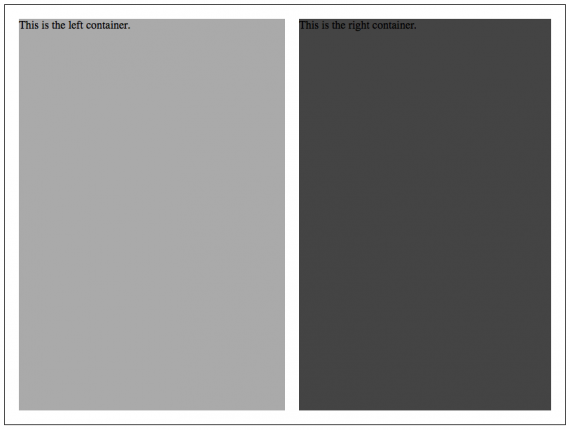
First, let’s create some basic containers.
<div class="wrapper">
<div class="leftcontainer">
This is the left container.
</div>
<div class="rightcontainer">
This is the right container.
</div>
</div>
Next comes some styles.
div.wrapper {
width:800px;
height: 600px;
border: 1px solid #000;
position: relative;
}

div.leftcontainer {
width: 380px;
height: 560px;
background: #aaa;
position: absolute;
left: 20px;
top: 20px;
}

div.rightcontainer {
width: 360px;
height: 560px;
background: #444;
position: absolute;
right: 20px;
top: 20px;
}
Put it all together and this is what you should get.
<!DOCTYPE html PUBLIC "-//W3C//DTD XHTML 1.0 Transitional//EN" "http://www.w3.org/TR/xhtml1/DTD/xhtml1-transitional.dtd">
<html xmlns="http://www.w3.org/1999/xhtml">
<head>
<meta http-equiv="Content-Type" content="text/html; charset=UTF-8" />
<title>Absolute $amp; Relative Positions</title>
<style>
div.wrapper {
width:800px;
height: 600px;
border: 1px solid #000;
position: relative;
}

div.leftcontainer {
width: 380px;
height: 560px;
background: #aaa;
position: absolute;
left: 20px;
top: 20px;
}

div.rightcontainer {
width: 360px;
height: 560px;
background: #444;
position: absolute;
right: 20px;
top: 20px;
}
</style>

</head>

<body>

<div class="wrapper">
<div class="leftcontainer">
This is the left container.
</div>
<div class="rightcontainer">
This is the right container.
</div>
</div>

</body>
</html>
The thing to remember with CSS positions is that you need to identify which div will contain the other. In the example above, div.maincontainer is styled position: relative; because it contains the other two divs. If we didn’t do this, then when we set div.leftcontainer to position: absolute; it would not position itself within the div container we want.
9 comments for “Absolute and Relative Positions in CSS”