
Sep
11
2009

Simple Rounded Corners with a CSS Sprite

by   |  Posted in Tutorials  |  9 comments

Optimizing a site for speed is one of the most important aspects of web development and CSS sprites are a great way to do just that. Check out Google for a great example of a sprite. In this tutorial, I will use a simple sprite (which is pretty much just a circle) to create rounded corners using a few div tags and CSS.

We need to create 7 div tags in total. Why so many, you ask? Well, the image below will show how we have to divide our box.

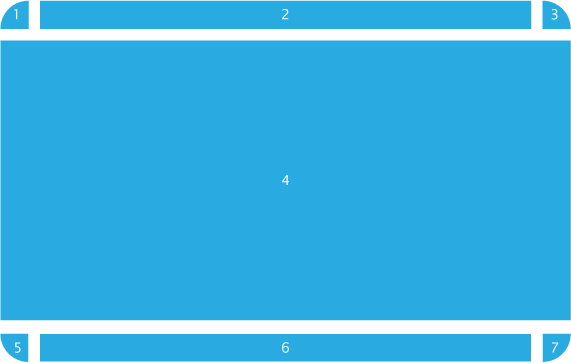
divide

Here is the image I will use.
rounded
It is pretty much just a 20 pixel by 20 pixel white circle with a black stroke.

Let’s put together the code for our div tags.

<div class="tl"></div><div class="tm"></div><div class="tr"></div>
<div class="content"></div>
<div class="bl"></div><div class="bm"></div><div class="br"></div>

Now for the CSS.

.tl {
	width: 10px;
	height: 10px;
	background: url(rounded.png) no-repeat top left;
	float: left;
	}
 
.tm {
	width: 352px;
	height: 9px;
	border-top: 1px solid #000;
	float: left;
	}
 
.tr {
	width: 10px;
	height: 10px;
	background: url(rounded.png) no-repeat top right;	
	float: left;
	}
 
.content {
	padding: 0 5px;
	width: 360px;
	clear: left;
	border-left: 1px solid #000;
	border-right: 1px solid #000;
	}
 
.bl {
	width: 10px;
	height: 10px;
	background: url(rounded.png) no-repeat bottom left;
	clear: both;
	float: left;
	}
 
.bm {
	width: 352px;
	height: 9px;
	border-bottom: 1px solid #000;
	float: left;
	}
 
.br {
	width: 10px;
	height: 10px;
	background: url(rounded.png) no-repeat bottom right;	
	float: left;
	}

What we are doing above, is using the same image (rounded.png) but aligning it differently. So the .tl class is aligned top left, which will show the top left corner of the circle. The .br class is aligned bottom right so the bottom right corner of the circle will show, and so on.

Put it all together and you get.

<!DOCTYPE html PUBLIC "-//W3C//DTD XHTML 1.0 Transitional//EN" "http://www.w3.org/TR/xhtml1/DTD/xhtml1-transitional.dtd">
<html xmlns="http://www.w3.org/1999/xhtml">
<head>
<meta http-equiv="Content-Type" content="text/html; charset=UTF-8" />
<title>Untitled Document</title>
<style>
 
.tl {
	width: 10px;
	height: 10px;
	background: url(rounded.png) no-repeat top left;
	float: left;
	}
 
.tm {
	width: 352px;
	height: 9px;
	border-top: 1px solid #000;
	float: left;
	}
 
.tr {
	width: 10px;
	height: 10px;
	background: url(rounded.png) no-repeat top right;	
	float: left;
	}
 
.content {
	padding: 0 5px;
	width: 360px;
	clear: left;
	border-left: 1px solid #000;
	border-right: 1px solid #000;
	}
 
.bl {
	width: 10px;
	height: 10px;
	background: url(rounded.png) no-repeat bottom left;
	clear: both;
	float: left;
	}
 
.bm {
	width: 352px;
	height: 9px;
	border-bottom: 1px solid #000;
	float: left;
	}
 
.br {
	width: 10px;
	height: 10px;
	background: url(rounded.png) no-repeat bottom right;	
	float: left;
	}
 
</style>
</head>
<body>
<div class="tl"></div><div class="tm"></div><div class="tr"></div>
<div class="content"></div>
<div class="bl"></div><div class="bm"></div><div class="br"></div>
</body>
</html>

Check it out below:

Lorem ipsum dolor sit amet, consectetur adipiscing elit. In tempus risus porttitor velit fermentum adipiscing suscipit felis posuere. In ullamcorper, neque ut bibendum molestie, odio tellus pretium libero, ac placerat nisl nisl fringilla quam. In gravida commodo ante, id sagittis orci lacinia vel. Nulla eu rhoncus nulla. Donec odio neque, tristique a dignissim non, dapibus id magna. Donec fermentum, lectus ac vehicula euismod, tellus dolor scelerisque massa, sit amet posuere ipsum purus quis orci. Integer ligula lacus, dignissim ac consequat eget, varius vel tellus. Nam accumsan blandit mi, eu vestibulum sem sagittis sit amet. Vestibulum lacinia dui pulvinar enim fermentum blandit. Curabitur sed velit magna, ut fringilla ligula. Suspendisse a odio sapien, in vestibulum nibh. Duis feugiat viverra diam, ut molestie lectus porttitor sit amet. Integer malesuada justo non velit dignissim commodo. Integer pulvinar blandit porta. Sed ac mi lorem. Praesent scelerisque scelerisque nulla, eu tincidunt nisi auctor ut. Sed egestas orci vel velit interdum vitae malesuada justo cursus. In hac habitasse platea dictumst. Phasellus mi justo, faucibus non pharetra at, fermentum a orci. Nulla elit turpis, convallis id faucibus eu, iaculis eget eros.

About the author:

A freelance web developer living in Montreal who spends most of his time writing for this site and building Premium themes for WordPress. You can find him on Twitter @bavotasan.

Site5 Affiliate Link
Share the love...

Tags: , , , , , , ,

Short URL: http://bit.ly/d0RFV3

Discussion 9 Comments

  1. oes tsetnoc on September 18, 2009 at 8:14 am

    Thanks for the detailed tutorial on how to create rounded corners. I have seen this tutorials in using dreamweaver as well.

    It’s a nice read.

  2. flavius on October 4, 2009 at 3:10 pm

    or you could use -moz-border-radius and -webkit-border-radius for gecko and webkit browsers and svg for opera. don’t know if trident (internet explorer) supports svg. for sure it doesn’t support border-radius which is pretty shame.

  3. redpony on November 11, 2009 at 3:34 am

    Excellent explanation. Very easy to get the idea. Thank you.

  4. Nidhi on April 16, 2010 at 4:29 am

    want to know how to create gradient corners if i made this?

  5. Extend Studio on May 17, 2010 at 7:36 am

    You can do rounded corner css boxes in Dreamweaver without coding, using FlexiPanels CSS extension

  6. Matthew Waygood on May 26, 2010 at 7:33 am

    Hi,

    Cheers for the example. I really liked it, but it was fixed width, so I did another example. It works in Ie, Firefox, Chrome, Opera, Safari and Seamonkey.

    <!DOCTYPE html PUBLIC "-//W3C//DTD XHTML 1.0 Transitional//EN" "http://www.w3.org/TR/xhtml1/DTD/xhtml1-transitional.dtd">
    <html xmlns="http://www.w3.org/1999/xhtml">
    <head>
    <meta http-equiv="Content-Type" content="text/html; charset=utf-8" />
    <title>Untitled Document</title>
    <style>
    .wrapper{
     border: 1px solid #000;
     padding-bottom: 9px;
     }
    .top_l{
     height: 10px;
     width: 10px;
     margin-left:-1px;
     margin-top:-1px;
     background: url(rounded.png) no-repeat top left;
     float: left;
     }
    .top_r{
     height: 10px;
     width: 10px;
     margin-right:-1px;
     margin-top:-1px;
     background: url(rounded.png) no-repeat top right;
     float: right;
     }
    .bottom_l{
     height: 10px;
     width: 10px;
     margin-left:-1px;
     margin-bottom:-1px;
     background: url(rounded.png) no-repeat bottom left;
     float: left;
     }
    .bottom_r{
     height: 10px;
     width: 10px;
     margin-right:-1px;
     margin-bottom:-1px;
     background: url(rounded.png) no-repeat bottom right;
     float: right;
     }
    .middle{
     padding: 5px;
     }
    </style>
    </head>
    <body>
     <div class="wrapper">
      <div class="top_l"></div><div class="top_r"></div>
      <div class="middle">a af sd sdfg s g sf g sfg  sg  sg s g sd g sg s g sg s g sg s g s g s g s gs g  sg s g s g sg </div>
      <div class="bottom_l"></div><div class="bottom_r"></div>
     </div>
    </body>
    </html>
  7. janis on July 16, 2010 at 5:45 am

    Hi,

    a nice one.. but if you wanna use 100%width in tm.. i get problems.. maybe some one has a idea..

    gr.

    • c.bavota on July 16, 2010 at 10:57 am

      Yup. You can’t use 100% on tm or bm. Both need space on either side for the rounded corner.

  8. Rakesh on July 18, 2010 at 2:06 am

    Nice tutorial with easy and good explanation.