
WordPress 3.0: Checking out the New Menu System
The release of WordPress 3.0 is almost here, so I thought it would be a good idea to start an in-depth discussion on some of the new features. One that I am really looking forward to, and that has been getting a lot of buzz, is the new menu system. Inspired by a similar system created by WooThemes, WP 3.0 allows the user to create multiple menus that can include any category, page or link they choose. I have been testing the latest build (3.0-beta2-14769) and so far, the menu system interface is looking pretty good.
Here are a couple of screen shots to show you what it looks like:
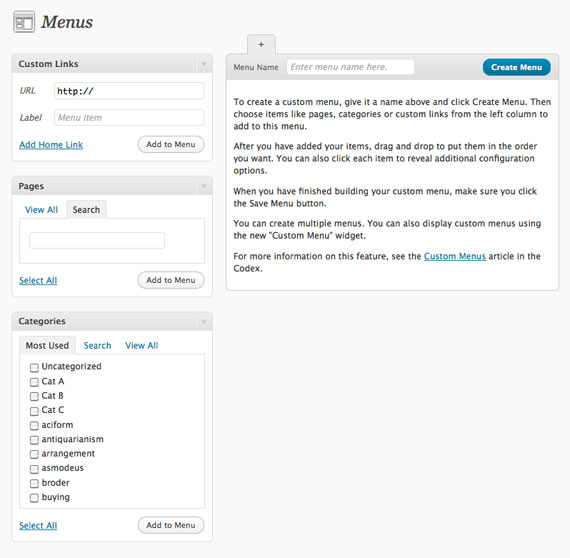
WordPress 3.0's new menu system.
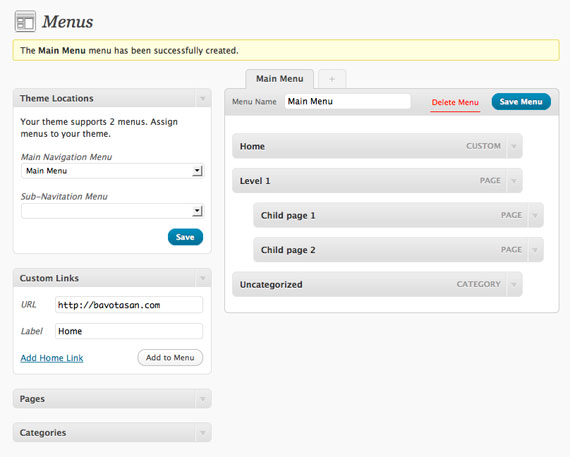
This is what you will see once you have created a menu.
Taking a look behind the scenes of TwentyTen, the new default theme for WP 3.0, gives a little insight as to how it all works and what needs to be in place to make sure that the theme you are using will take advantage of this new feature.
First, you need to include the following in your functions.php file:
add_theme_support( 'nav-menus' ); |
Make sure it is placed within the PHP tags. That is all you really need to activate the menu system. A link to the Menus admin page will appear in the Appearance panel. If you really want your theme to stand out, you can even register menu locations so that the user can assign menus to specific areas of your theme templates. This is similar to the sidebar functionality.
register_nav_menu('main', 'Main Navigation Menu'); |
This will register a menu with the ID “main” and the description “Main Navigation Menu”. Including this snippet will make a new panel appear on the Menus admin page (see the second image above). Now users can select which of their menus will appear in that registered location.
Next comes the function to actually display these menus in your theme. This is how TwentyTen uses the function in header.php:
<?php wp_nav_menu( array( 'sort_column' => 'menu_order', 'container_class' => 'menu-header' ) ); ?> |
The above code displays the first menu you created, ordered how you have set it, within a div container with the classname “menu-header”.
Here is a list of all the arguments that the function can take (so far):
- menu – The menu that is desired. Accepts (matching in order) id, slug, name. Defaults to blank.
- menu_class – CSS class to use for the ul container of the menu list. Defaults to ‘menu’.
- container – Whether to wrap the ul, and what to wrap it with. Defaults to ‘div’.
- container_class – the class that is applied to the container. Defaults to blank.
- fallback_cb – If the menu doesn’t exists, a callback function will fire. Defaults to ‘wp_page_menu’.
- before – Text before the link text.
- after – Text after the link text.
- link_before – Text before the link.
- link_after – Text after the link.
- echo – Whether to echo the menu or return it. Defaults to echo.
- depth – how many levels of the hierarchy are to be included. 0 means all. Defaults to 0.
- walker – allows a custom walker to be specified.
- context – the context the menu is used in.
- theme_location – the location in the theme to be used. Must be registered with register_nav_menu() in order to be selectable by the user.
You need to use the theme_location argument to call a registered menu:
<?php wp_nav_menu( array( 'theme_location' => 'main', 'sort_column' => 'menu_order', 'fallback_cb' => 'display_home' ) ); ?> |
I have also added the fallback_cb argument to show how to control the default callback if no menu is created. If you don’t include a callback it will default to wp_page_menu() which will just list your pages. I have assigned a function called display_home() as my callback.
function display_home() { echo '<div class="navigation"><ul><li><a href="'.get_bloginfo('url').'">Home</a></li>'; wp_list_categories('title_li=&depth=1&number=5'); echo '</ul></div>'; } |
By default, that will display a home link and 5 categories.
There still seem to be a few bugs in the new menu system, but that is to be expected in a beta version. All in all, it is a great addition to WordPress, and theme developers should rejoice that they can now easily offer more control to their users by taking advantage of one of the many core features that will be included in WP 3.0.


I think WordPress 3.0 is one of the most liked version of WordPress as you described that it comes with extra functions and features.
Hello!
I understood that the theme “Twenty Ten” allows you to make multiple menus.
Though, I am still struggling with the following issue: in the site I am building, I have 2 sections. Each section should have its own menu. How can I attribute “Menu 1″ to the first section and “Menu 2″ to the second one?
In Appearance > Menus > Theme Locations, it is mentioned that Twenty Ten supports 1 menu. Can I change this?
You need to add more
register_nav_menu()calls to the functions.php file. Then you need to include thewp_nav_menu()call function to display those new locations, most like in theheader.phpfile.Don’t be to exited about the new menu system. It is is intentionally incomplete.
For example there is NO filter to filter the generated array of menus items. So, say goodbye to sub-menu and portions of menu display, you won’t be able to do it with a powerful wordpress filter.
Why? Because the wordpress dev team has refused to include ONE more line of code and delayed it to WP 3.1.
So why don’t you join the team Mr. Smartguy?
A nice, neat little explanation of this new feature. After reading, I understood this in a way that was not forthcoming from the official WP Codex.
I will be using this in my next project, and you have saved me some time and effort – thanks!
Thanks a bunch for your post!! it really helped me in finding my way out.
Success change my theme!
Thanks!
When using “register_nav_menu” you don’t need to add “add_theme_support”. The function already does this by herself.
Cool. I did not know that. Thanks.
Thanks for a very clear and easy to understand post. Like a few other people here, It wasn’t too clear to me just from the official documentation.
I literally just started trying to make my own WordPress themes this week and you’ve helped me over my most recent hurdle!
Just as a suggestion from a complete wp noob…it would be even more helpful if you could be more clear in places as to which files you’re adding your code to. For example, functions.php and perhaps where within the file too.
Sorry if this is obvious to everyone else : )
Thanks again for sharing a very useful post!
When you are added something the the
functions.phpfile, it can go anywhere, as long as the PHP code is within the PHP tags.where can we edit the html of the final menu html generated…Like if i do not want the structure.
You can use
wp_get_nav_menu_items();to fetch your menu items by assigning the menu name as a parameter. Then you would need to use a foreach loop to cycle through the items and create the HTML you desire.Menu items generated with wp nav menu() are given a unique CSS ID. This prevents re-using the same menu on the same page.
The WP 3.1 is out now, maybe they changed this.
The question about having a second navigation menu hasn’t been answered yet? Hopefully, the answer wasn’t it being incomplete. I hope someone can shed some light as to how to create more than one menu.
ps. I have tried all the examples and still no luck. the theme location stuff isn’t working. this is what I have in my functions,
add_action( ‘init’, ‘register_my_menus’ );
function register_my_menus() {
register_nav_menus( array(
‘header-menu’ => __( ‘Header Menu’ ),
‘content-menu’ => __( ‘Content Menu’ ),
‘footer-menu’ => __( ‘Footer Menu’ )
));
}
and within the theme at different locations I would add,
‘header-menu’ ) ); ?> or ‘content-menu’ ) ); ?> or ‘footer-menu’ ) ); ?>. I am still not getting the menus I created in the backend to show up accordingly.
Thanks.
This is how I do it in Magazine Premium:
Thanks a bunch for your post
Very good Menus, thank you. WordPress is a daunting challenge but you guys are making it easier.
yes, improvements in Menu management in WordPress 3.0 is the feature, from which I benefit most in the development of some of my sites!
WordPress has always been a pain in the butt to configure, but I’m glad there are sites like these to give us technologically challenged dummies some help. Ha ha!
I guess I have no choice but to learn wordpress. I’m the current website manager for the company I work for and they want to switch formats for the blog. Oh well, I guess it’s a new skill to have. Thanks for the screen shots!
Works a charm! Thank you!
These are great WordPress resources – I actually just started digging into a really really solid book on WordPress 3.0. It’s got some really nice code samples, and is written by a few pro WordPress developers (including some from Envato). I’m actually giving away 2 copies of the e-book on my site – check out the details about the e-book and the giveaway here – I think you’ll dig it : http://bit.ly/lq20Ff