
Aug
27
2009

Creating an Internet Explorer Testing Environment on a Mac


I have been a Mac man for a long time. I know some people hate ‘em for whatever reason, but I have always found them to be great machines for what I do. The only thing that makes it a little tough when it comes to working on the web though, is the fact that you can’t really test in IE, unless you install something like Parallels Desktops and Windows. That works somewhat, but a copy of Parallels Desktop will run you $79 and Windows can cost you $100 or more. In the end, it costs quite a bit and you can only run one version of IE. That doesn’t really make for a great testing environment, especially when there is a better option out there that is absolutely FREE.

I had previously written about Installing Microsoft Explorer 6 on a Mac but recently I discovered a better way of setting up a testing environment for IE thanks to Andrew Odri and Jeff Couturier and their great articles. (All credit goes to them in steering me in the right direction on this one.) There were a few problems I encountered along the way so I thought it would be a good idea to let you know exactly how I got it to work.

Here is what you need before we start:

  1. VirtualBox 2.0.6 – Only version 2.0.6 will work for this tutorial.
  2. Q – this make it possible to install 3 versions of IE
  3. Zipeg – to convert the IE files to a format we can use
  4. Internet Explorer – download these three files: IE6-XPSP3.exe, IE7-XPSP3.exe, IE8-XPSP3.EXE

Once you have downloaded everything, install VirtualBox, Q and Zipeg.

I’ve broken it down into three sections. First, I’ll show you how to get everything ready. Next I’ll walk you through installing IE with VirtualBox. Then I’ll help make sure everything runs properly.

For this tutorial, I’ll use IE6-XPSP3.exe as an example. Afterward, just repeat all the steps below to install IE 7 and IE 8.

1. Change the extensions on IE6-XPSP3.exe from .exe to .zip.

2. Create a sub-folder in your Applications directory called “IE”.

3. Launch Zipeg and drag the IE6-XPSP3.zip file into it for extraction. Extract the .vhd files into the IE sub-folder you created.
zipeg

4. Open up your IE sub-folder and you will see a folder called “IE6-XPSP3″. Open that folder and you should have a file called “XP SP3 with IE6 2009-Apr.vhd. Rename that sucker something simple like ie6-xpsp3.vhd.

5. Now launch Terminal (Applications => Utilities => Terminal) and type:

/Applications/Q.app/Contents/MacOS/qemu-img convert -O raw -f vpc /Applications/IE/IE6-XPSP3/ie6-xpsp3.vhd /Applications/IE/IE6-XPSP3/ie6-xpsp3.raw

This will take about 5 minutes to process so just wait until your Terminal prompt returns.

6. Next, type:

VBoxManage convertdd /Applications/IE/IE6-XPSP3/ie6-xpsp3.raw /Applications/IE/IE6-XPSP3/ie6-xpsp3.vdi

This will also take a few minutes so just wait for that prompt to return.

Now we need to launch VirtualBox to get the show on the road. Once you have the software opened do the following.
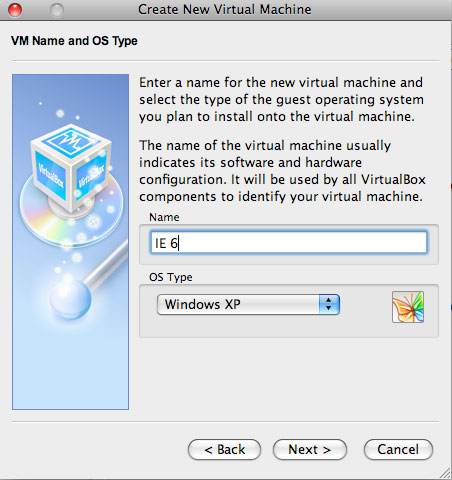
Picture-51. Click the New button in the top left to enter the “Create New Virtual Machine” wizard.

2. Click “Next” and enter “IE 6″ in the Name field and select “Windows XP” as the OS Type.

3. Click past the next screen until you reach the Virtual Hard Disk page. Click the Existing button and a new window will open.

4. Select “Add”. Browse through your folders to Applications => IE => IE6-XPSP3 and select the .vdi file that we created through our Terminal commands above. You will return to the Virtual Hard Disk page. Click next.

5. You should now be at the Summary screen. Click finish and you will see a selection for IE 6 in VirtualBox.

Now that everything is installed, let’s launch IE 6 and make sure it runs properly.
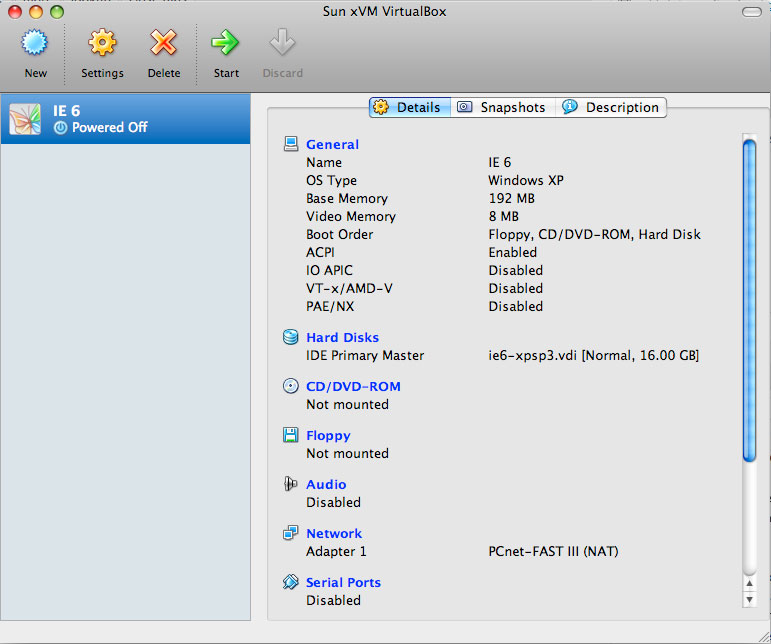
1. Select IE 6 in the VirtualBox window and click start in the tool bar at the top. Press F8 right away to load Windows into Safe Mode. If it doesn’t load in Safe Mode, just close the window and try again. It will automatically load in Safe Mode the second time around.

Picture-6

2. A bunch of hardware prompts will appear. Just cancel them all. Go to the Start menu and select Run. Type “cmd” to open the command line.

3. Type the following at the command prompt.

cd \WINDOWS\system32\drivers
ren processr.sys processr.old
exit

4. Restart Windows.

5. When Windows loads up, close all those popups. Go to the top menu of Virtualbox VM (your Windows window) and select Devices=> Install Guest Additions. Click through the windows. If a warning comes up just click Continue Anyway and move on. When the process is complete, select Reboot Now and click Finish.

6. After Windows reboots, more popup windows will appear. Cancel them all and go to Start => My Computer, right-click and select Properties. The System Properties window will appear. Go to Hardware => Device Manager.

7. Now you will see a list with two items that are not recognized. First, select Batteries => Unknown device and right-click. Disable this because you will never use it. Next go to Ethernet Controller and right-click. Select Update Driver.

8. In the Hardware Update Wizard, select the middle option “Yes now and every time I connect the device” and click next. Click next again to install the driver automatically. Close all your windows.

9. Click on the desktop icon to open Internet Explorer 6.

And there you have it. Repeat the process to install IE 7 and IE 8 so you can round off your testing environment.

TIP: If you don’t want to wait for Windows to load each time you open your VirtualBox VM, click the red x at the top on your window and select Save the machine state. Next time you access your IE 6 VM it will be exactly how you left it.

If you liked this, please share it.

Tags: , , , , , , , , , , , , , , , , , , , , , , , , , , ,

Short URL: http://bit.ly/bexuAy

Discussion 28 Comments

  1. Jason Loftis on August 27, 2009 at 8:59 am

    After following these instructions, I was able to get IE to work in the VirtualBox’s Windows XP guest operating system. But XP is nagging me with messages saying that I have 3 days to activate it. Will I really need to activate XP or does the “clock” restart every time I restart VirtualBox?

    • c.bavota on August 27, 2009 at 9:46 am

      Hey Jason,

      I just went through the installation again and I did not encounter the same issue as you. What are your Mac system specs? Did you complete the steps above exactly?

    • Jason Loftis on August 27, 2009 at 7:09 pm

      I did follow the instructions exactly as stated.

      After booting up in Safe Mode and renaming the processr.sys file to processr.old, I restarted Windows. Upon rebooting, I saw a message that stated that too much “hardware change” had occurred and Windows needed to be reactivated within 3 days.

      There’s a permanently displayed “Windows Genuine Software” nag in the lower right corner above the system tray. If you click on it, it opens a Microsoft webpage that states:

      “Windows must be activated in order to
      determine if the Windows product key
      installed on this computer is
      genuine.”

      I’ve posted a screenshot online: click here for the virtualbox screenshot

    • Jason Loftis on August 27, 2009 at 7:16 pm

      My Mac System Specs:

      iMac7,1
      Intel Core 2 Duo
      2.4 GHz
      4GB RAM
      Leopard 10.5.8

    • Nick Hanophy on September 2, 2009 at 4:53 pm

      Great Tutorial!
      However, after installing and attempting to fire up VirtualBox I get this error:

      Could not load the settings file ‘/Users/nick/Library/VirtualBox/VirtualBox.xml’.
      Cannot convert settings from version ’1.7-macosx’.
      The source version is not supported.

      Result Code:
      NS_ERROR_FAILURE (0×80004005)
      Component: VirtualBox
      Interface: IVirtualBox {557a07bc-e6ae-4520-a361-4a8493199137}

      Any help would be great!

  2. Megan Taylor on August 29, 2009 at 1:30 pm

    Hey, I’m having the same problem. I’ve used VB before, for Ubuntu and Windows 7 testing. I’m getting the same Windows Genuine Software nag, and having problems installing guest additions.

    Any ideas?

  3. Calvin on August 30, 2009 at 2:20 am

    I hade the same problem with the Windows Genuine Software nag… anybody ever make any headway on this?

  4. Eric on August 31, 2009 at 6:15 pm

    Same problem. If you reboot the VM a few times, it totally locks you out, looking for a CD Key. I have this problem after converting for VMWare fusion, going through a similar process. This worked fine with the Aug31 expiring IE VPC images, but the Jan1 expiring VPC images lock you out. I think the problem is that Windows detects a major hardware change, which requires you to reactivate. No idea how to fix. Anyone?

  5. c.bavota on September 1, 2009 at 10:19 am

    Has anyone attempted to install more than one version of IE? Does this happen with each version?

    I have installed IE 6, 7, and 8 and did not encounter this issue. A few people I know who followed this tut also had no problems. I wish I was able to figure out what was going on but I don’t really know enough about VirtualBox. I’ll do my best to try to figure this out by doing a little research.

    • Jason Loftis on September 2, 2009 at 3:27 pm

      I installed IE6, IE7, and IE8. I get the activation nag for all three. I passed the 3 day grace period, and even though the nag is still there, I can still use Windows. Perhaps the activation requirement is an idle threat in this virtual environment. I’ll let you know if it finally shuts me out.

  6. Jason Loftis on September 4, 2009 at 11:12 pm

    UPDATE: I downloaded the Microsoft .exe files on 08/27/2009. Apparently those files were set to expire immediately. New files were added to the MS website on 08/28/2009 that are noted to expire on 01/01/2010.

    I’m going to download the new files and try this process all over again. Hopefully, the request for Windows authentication will not appear until January. I’ll let you know what happens.

    Microsoft Download Page

    • drh on October 12, 2009 at 6:51 am

      I downloaded IE8-XPSP3.exe which is not supposed to expire until January 2010 but it still asks to activate and I am locked out. I have tried going through the activation process with some valid WIN XP keys but they all fail.

      Whats the point of MS posting these downloads with a future expiry if they are not going to provide activation keys???

      Just wasting everyone’s time.

  7. oes tsetnoc on September 21, 2009 at 7:47 am

    I’ve never tried MAC but i really admire it.

    Those simple but elegant interface…

  8. Mike on October 13, 2009 at 10:35 am

    Not a bad tut, but i’m locked out. I got to this stage:
    “6. After Windows reboots, more popup windows will appear. Cancel them all and go to Start => My Computer, right-click and select Properties. The System Properties window will appear. Go to Hardware => Device Manager.”

    …and after the reboot a user account has been created called IETest. Everything i click on it a ‘Windows Product Activation’ pop-up appears asking me to activate it with microsoft. If i click no it logs me out, if i click yes it takes me to a microsoft window where it asks me to buy the software.

    So i’ve hit a wall and i can’t access the Start menu. Thanks, but there’s another way to run IE on a mac and i think i’ll look at that.

  9. c.bavota on October 13, 2009 at 12:33 pm

    I apologize to those who are hitting roadblocks. I have installed IE on many computers using the steps above but Microsoft keeps changing the VPC images for IE and that seems to be causing some issues.

    As soon as I discover any solutions I will post them here.

  10. christian on October 15, 2009 at 6:02 pm

    It’s not legal, but you can patch the activation
    http://www.megaupload.com/?d=MJPZIMOH
    download and unrar it, zip it and upload it
    install a new ie6-sp3.exe
    Install Guest Additions
    extract drivers and install network driver
    download the antiwpa.zip
    extract it
    execute the cmd
    and the anoying activation trouble is gone.

  11. c.bavota on October 30, 2009 at 12:21 pm

    I just upgrade to VirtualBox 3.0.10 and it solved a lot of issues that were occurring when I upgraded my Mac OS X to Snow Leopard.

  12. Marlon on January 10, 2010 at 1:46 am

    Internet Explorer 8 is really good. This browser is very very stable and i have been using it for quite a while without blue screens or crashes.

  13. Lex on January 11, 2010 at 6:20 pm

    Thanks for the detailed instructions on this. I got IE6 running on the VM, but left my computer for a little while, and now it’s asking for a password for the IETest account. I tried some of the obvious choices, but no joy. Any idea how I can get back on the horse?

    • c.bavota on January 12, 2010 at 3:48 pm

      That may be due to a new version of the Microsoft IE files. Have you tried entering nothing and just clicking through?

    • Lex on January 14, 2010 at 6:43 pm

      I ended up just quitting out and restarting, then setting the timeout for longer. Thanks!

    • tomasz on January 20, 2010 at 8:59 am

      Default password is: P2ssw0rd.

      You can check it in HKLM\SOFTWARE\Microsoft\Windows NT\CurrentVersion\Winlogon\DefaultPassword

  14. philly supreme on January 13, 2010 at 6:47 pm

    i was able to get around the activation issue by actually calling MS (activate by phone), their automated service gave me a registration code.

    • MGP on January 28, 2010 at 3:47 pm

      I tried calling their phone number without success. After speaking 50 digits to their automated service, it informed me that the number could not be used.

  15. Lucas Parker on April 28, 2010 at 1:40 pm

    Internet Explorer 8 is very good because it is as stable as Opera. I hate the previous versions of IE like IE6 because it hangs frequently. ‘

  16. Travis Kriplean on May 23, 2010 at 5:13 pm

    For those having problems getting network driver installed on later versions of virtualbox, I found this useful:

    http://www.virtualbox.org/ticket/3411

  17.  Melatonin on August 15, 2010 at 11:52 pm

    IE8 has some bugs too although it is more stable than IE7 and IE6*’`

  18. Justin on September 2, 2010 at 6:03 am

    I’d like to add a current status on this for September 2010 as I just spent an unhappy half day getting it working.

    - The BSOD does not happen anymore
    - The Microsoft downloadable virtual images are licensed typically only for 30 days! BUT, the license requires them to be used in (on) an existing licensed windows! thus they will gripe about activation and windows genuine advantage. They are obviously not or no longer intended to be used like this (for cross platform web testing). So you get 3 days and limited reboots before they lock up. Doh!
    - The Network driver I had terrible problems finding (all those bogus download sites, and AMD does not offer it anymore) until I switched in virtual box machine settings to Intel Pro 1000, and downloaded the standard Intel driver. Voila. Networking.
    - The password for default IETest user on the test XP image should be changed immediately to ‘IETest’ or something, because the default is something that will lock you out and you need to google to locate. It is something like P2assw0rd.
    - If you want to avoid all the activation/wga hassles, for the XP SP3 images anyway, find & download AntiWpa_x64_x86_sp3_apr09 (or later) and run it.

    Now I am all set, good article. Just needs updating!

Leave a Reply

Your email address will not be published. Required fields are marked *

*


To enter code in the comment box, please place it between <pre lang="php"> </pre> tags. You don't have to convert any characters to their hex/HTML code. Just add your code the way you would to any code editor.